Your embroidery machine reads a short list of file formats, and the brand decides which: PES for Brother and Baby Lock, JEF for Janome, VP3 for Husqvarna Viking, Pfaff and current Singer models, EXP for Bernina, XXX for older Singers. DST, the commercial format, is read by many of them as a second option. Find your format in the table below, copy only that version of the design to a USB drive, and ignore the rest of the zip.
The Formats and the Machines That Read Them
| Format | Machines | Good to know |
|---|---|---|
| PES | Brother, Baby Lock | Stores thread colors. Exists in many versions; a very old machine may not open a file saved in a recent one |
| JEF | Janome, Elna | The default stitch format of every Janome and Elna embroidery machine. Newer models also save JEF+ and JPX, which are extended versions of it |
| VP3 | Husqvarna Viking, Pfaff, current Singer (SE9180, SE9185) | Stores colors and notes. Those Singer models load nothing else |
| HUS | Older Husqvarna Viking | Replaced by VIP and then VP3 |
| VIP | Older Husqvarna Viking and Pfaff | The shared format of both brands before VP3 |
| PCS | Older Pfaff | Pfaff's own format from before it shared one with Husqvarna Viking |
| EXP | Bernina (USB models), Melco | The Bernina version is three files per design: .EXP holds the stitches, .INF the colors, .BMP the preview. Copy all three. Plain Melco EXP carries no colors |
| ART | Bernina | Written only by Bernina's own software, so design sellers rarely include it; use EXP instead |
| XXX | Older Singer (Futura, Legacy) | The Legacy SE300, for example, reads only XXX and DST |
| SEW | Older Janome, Elna and Kenmore | The format these brands used before JEF |
| DST | Tajima and other commercial machines; many home brands as a second format | Stores stitches and stops, but no thread colors |
Many current machines read more than the format they are known for. Brother's support pages list PES, PHC and DST for its home models. Bernina's 7 Series manual lists EXP, PES, PEC, XXX, PCS, JEF and DST. Janome is stricter: the Memory Craft 550E reads only JEF, JEF+ and JPX, while the seven-needle MB-7 adds DST. The list in your manual is the one to trust, and it usually sits in the section on importing designs.
Why DST Shows the Wrong Colors
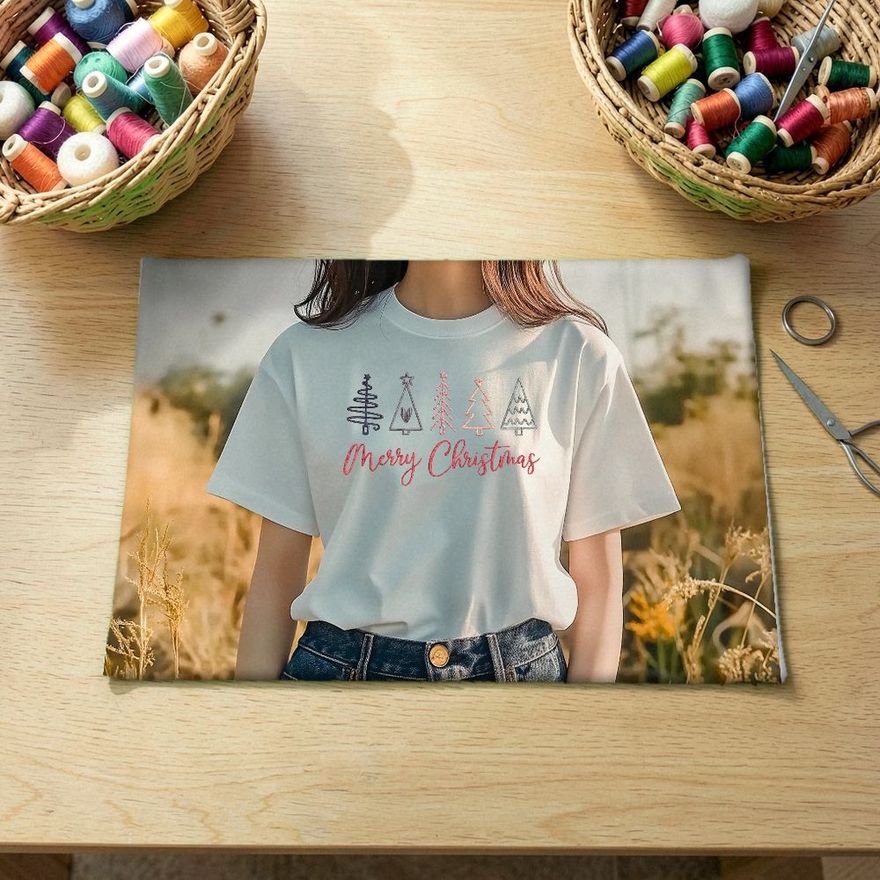
DST records where the needle goes and where the machine should stop for a thread change. It does not record which color comes next. When you open a DST file, the machine or software fills in colors from its own default sequence, as Brother's documentation puts it, so a Christmas tree may appear on screen in blue and orange.
Nothing is wrong with the file. Follow the color chart that comes with the design and thread the colors in that order. If your native format is in the zip, use it instead and the screen will show the designer's colors.
Stitch Files and Working Files
All the formats above are stitch files. They hold a finished list of stitches, which is why they resize badly: scaling moves the stitches apart or together without adding or removing any.
Digitizing programs save a second kind of file, a working file such as EMB, that keeps the shapes behind the stitches along with their fill pattern and density. Janome calls the two kinds master data and stitch data. A working file can be resized freely because the software recalculates the stitching. Design shops rarely sell these, and no machine reads them directly.
Two other things turn up in downloads and confuse people:
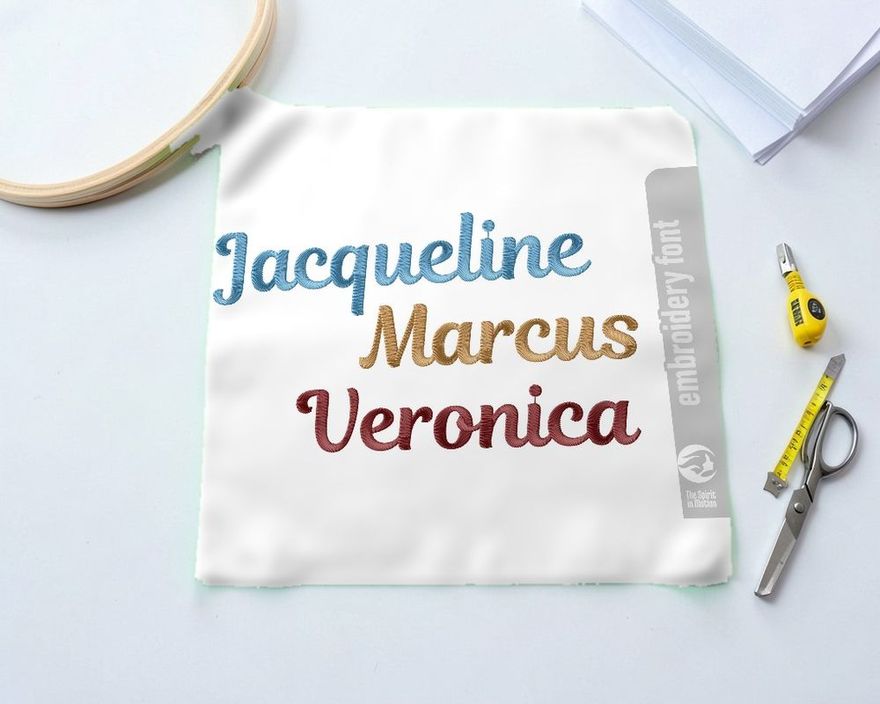
- BX is a font installer for Embrilliance software. It lets you type words on the computer keyboard instead of placing letters one by one, and the program's free Express mode is enough to use it. The machine does not read BX; the software saves your finished word as a stitch file in PES, JEF or whatever you need.
- SVG, PNG and JPG are pictures. They are useful for cutting applique fabric or previewing a design, but they contain no stitches.
If you are buying alphabets, the note about BX matters most. The embroidery fonts and monograms collection is where it comes up.
What Is Inside a Design Zip
A typical download is one zip archive. Unzipped, it usually holds:
- the same design saved in several formats, one file per format
- sometimes several sizes of the design, each in every format, with the size in the file name or the folder name
- a color chart, often a PDF, listing the thread order, the stitch count and the finished dimensions
- a preview picture
That is why a single design can unpack into thirty files. You need one of them. With a set or a bundle the count multiplies, and it pays to copy only the designs you plan to stitch this week.

Set of 7 Merry Christmas Embroidery File
See the listing ↗
Merry Christmas Embroidery Files
See the listing ↗
Modern Tree Christmas Embroidery Files
See the listing ↗From the collection Christmas Machine Embroidery. New Creative Fabrica members get 10 free downloads, and any of these can be one of them.
The listing page names the formats and sizes included. Read it before downloading; if your format is missing, it is usually simpler to pick a different design than to convert.
Getting the File Onto the Machine by USB
- Download on a computer. A phone works for browsing, but unzipping and copying to a drive is easier on a computer.
- Unzip the archive. On Windows, right-click the zip and choose Extract All. On a Mac, double-click it and the unzipped folder appears beside it. The machine cannot look inside a zip.
- Find your format and size. Sort the folder by file type if the list is long.
- Copy the file to a USB flash drive, into the place your machine looks. Many Brother models read only the top level of the drive and ignore anything inside a folder. Janome machines create a folder named EMB with a subfolder EmbF on the drive, and designs go inside EmbF.
- Eject the drive safely, plug it into the machine and open the USB source on the screen.
Some machines also connect to the computer with a USB cable and show up as a removable disk, and newer models can receive designs over Wi-Fi: Brother's PE900, for example, takes them from the Artspira app or the Design Database Transfer program. The file you send is the same either way.
Keep one small flash drive only for embroidery. Brother and Singer both specify a drive formatted as FAT32. If a large new drive is not recognized, its formatting is the first thing to check.
When the Machine Cannot See the Design
Work down this list; the cause is nearly always one of these.
- The file is still zipped, or you copied the whole zip.
- Wrong format. A Janome will not list a PES file.
- The design is larger than the machine's field. Brother states that every design must fit within the machine's field, and a file that does not may be left out of the list with no error message. A 5x7 design will not appear on a 4x4 machine. Compare the dimensions on the color chart with the field sizes in the hoop size chart.
- The file is in the wrong place. In a folder on a Brother that reads only the top level, or outside the EmbF folder on a Janome.
- Too many files. Some Brother models that connect by cable handle at most 12 patterns on the removable disk and ask you to delete the rest.
- The file name. Brother recommends names made only of letters, digits, hyphens and underscores; a name with other characters may not be displayed. Rename the file to something short and plain.
- The drive itself. Try a small flash drive formatted as FAT32.
Converting Between Formats
If a design comes without your format, embroidery software can convert it. Some makers offer free programs for this; Bernina's manual points owners to its free ART-Link for loading designs from other sources. Paid editing programs all convert.
Conversion between stitch formats keeps the stitches as they are, so the quality does not change. Colors are the weak point: converting from DST gives you default colors, and you will need the color chart. Converting does not resize anything, and it cannot make a design fit a smaller hoop.
What to Do Next
Open your machine's manual to the page on design formats and write the format and the maximum field size on a sticky note. Put the note on the machine. Those two facts answer most questions on any listing, and the beginner's guide covers what happens after the file is loaded. If you want a low-risk download to practice the whole routine, a set from the embroidery design bundles gives you several files to unzip, sort and copy.
Collections This Guide Draws On
 Embroidery Design Bundles13 hand-picked · open the collection →
 Embroidery Fonts & Monograms11 hand-picked · open the collection →Christmas Machine Embroidery13 hand-picked · open the collection →